
Marinios IPTV on Android Phone: Setup & Streaming
September 6, 2026 · 9 min read
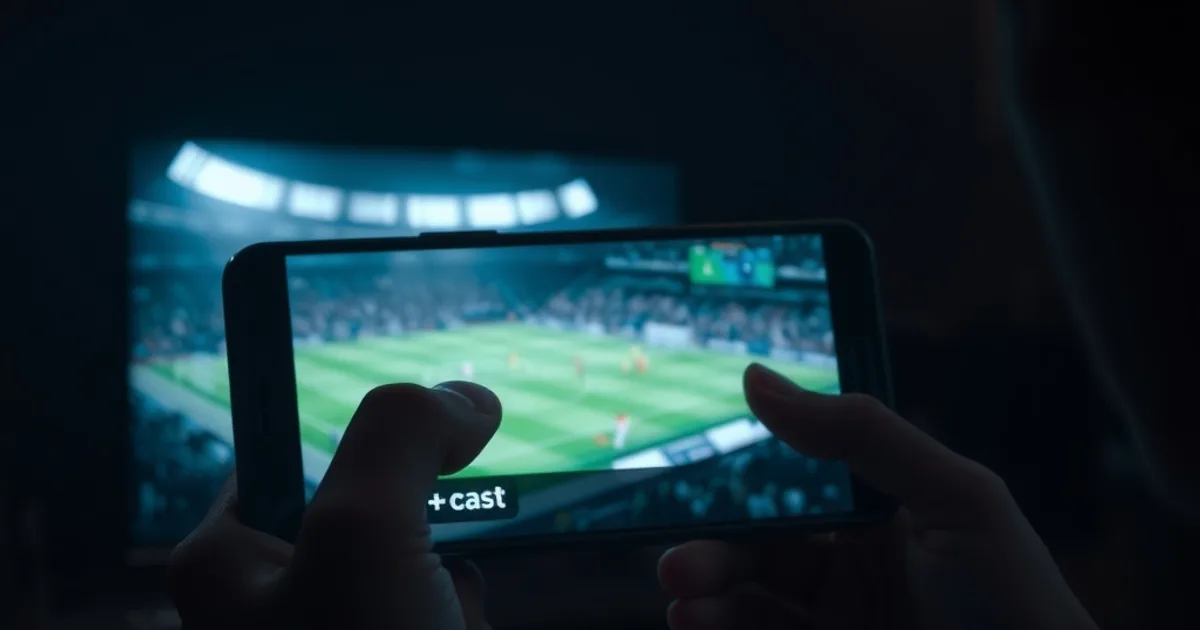
Most Marinios IPTV setup content out there still assumes you're sitting in front of a TV with a remote in hand. But the phone in your pocket is where a huge share of IPTV watching actually happens now — waiting rooms, commutes, second-screen viewing during a match you're also half-watching on the big screen. Market research on IPTV consumption patterns has been pointing the same direction for a while: smartphones and tablets make up the largest device segment by usage, ahead of dedicated boxes and smart TVs.
And yet, walk through the setup guides published by GreatestIPTV, StrimoIPTV, or KenIPTV and you'll find the same generic "how to sideload an app on Android" page, copy-pasted with minor variations, that never once mentions how any of it interacts with their own service's playlist format, anti-buffering tech, or EPG. Nothing wrong with generic instructions, but they leave you to guess which app actually plays nicely with the service you're paying for.
This guide is written specifically for Marinios subscribers on Android phones — credential entry the way Marinios issues them, a real comparison of the three most common player apps, how Anti-Freeze 3.0 and multi-CDN behave on a phone connection versus a home Wi-Fi box, and the phone-specific stuff nobody covers: battery drain during a 90-minute match, data usage on mobile networks, and getting the stream from your phone screen onto an actual TV when you want to switch. With Premier League, Bundesliga, Serie A, and Ligue 1 all mid-season right now, this is exactly the moment mobile setup friction costs you the first ten minutes of a match.
Why Android Phone Is the #1 Way People Watch IPTV in 2026
There's a simple reason phones lead IPTV usage: they're the one screen that's always with you. A smart TV needs you to be home and free; a phone catches the highlights during a commute, the second half at a kid's practice, or a match at work with earbuds in. Android's install base globally makes it the default entry point for most new IPTV subscribers before they ever touch a box or a smart TV app.
That shift changes what 'good setup' means. On a TV, the main variables are the box's processing power and your home network. On a phone, you're also dealing with a smaller battery, a cellular connection that can vary block to block, a screen that rotates, and notifications competing for the same CPU cycles as your video decoder. A setup guide that ignores those variables isn't really a mobile guide — it's a TV guide with 'Android phone' in the title.
The competitors covering this keyword (GreatestIPTV, StrimoIPTV, KenIPTV) treat phone setup as identical to TV box setup with a different app icon. It isn't. The rest of this guide treats the phone as its own environment, tuned for Marinios specifically.
Not sure which app fits your phone and connection best?
Installing Marinios IPTV on Android Phone: Step-by-Step
Marinios issues your access the same way regardless of device: an M3U playlist URL (or a Xtream Codes-style server address, username, and password), delivered after signup. On a phone, the practical steps are: install your chosen player app from the Play Store, open its 'Add Playlist' or 'Add User' screen, and paste in your Marinios credentials exactly as sent — no trailing spaces, no re-typing digits by hand where you could copy-paste instead. Typos in the server URL are the single most common 'it won't load' support message we see, on any device.
One phone-specific detail worth knowing: some Android IPTV apps cache the playlist locally the first time you load it, so if Marinios pushes a channel or EPG update, the app might not reflect it until you force a playlist refresh from the settings menu. Look for a 'Refresh EPG' or 'Update Playlist' option rather than deleting and re-adding your account — that keeps your favorites and settings intact.
If you're unsure which credential format Marinios sent you, or the app is asking for fields you don't have, that's exactly the kind of two-minute fix a real person can resolve faster than trial and error — worth reaching out before you burn twenty minutes retyping the same URL.
Best Apps for Marinios on Android: IPTV Smarters vs OTT Navigator vs GSE Smart IPTV
For a deeper device-by-device breakdown of app performance across the whole Marinios lineup, see our guide on the best IPTV app (TiviMate vs Smarters). On Android phone specifically, the three apps worth your attention are IPTV Smarters Pro, OTT Navigator, and GSE Smart IPTV — each behaves a little differently with Marinios streams.
IPTV Smarters Pro is the most beginner-friendly of the three: clean EPG layout, simple category browsing, and it renders Marinios's guide data cleanly without extra configuration. It's the one we'd point a first-time mobile viewer toward. OTT Navigator trades some of that simplicity for deeper buffer and codec controls — useful if you're on a spottier mobile connection and want to manually tune buffer size against Marinios's Anti-Freeze behavior rather than rely on defaults. GSE Smart IPTV sits in between: solid multi-playlist support (handy if you're also testing free channels alongside your Marinios subscription) but a less polished phone-specific layout than Smarters.
None of these apps are 'made for Marinios' — they're general-purpose IPTV players. What matters is which one's buffer and connection settings you actually tune for your situation, which is the point of the next two sections.
Getting Marinios 4K & Anti-Freeze™ Working on Mobile
Our full 4K setup walkthrough covers the hardware and network baseline in detail — the mobile version of that story has one extra wrinkle: your phone's screen usually can't show the pixel difference between a 4K and a 1080p stream, but your data usage absolutely can. Unless you're actively casting to a 4K TV (see the casting section below), there's rarely a reason to force the highest available quality tier while watching directly on the phone screen — it burns more data and battery for a visual difference you won't see on a 6-inch display.
Anti-Freeze 3.0 and Marinios's multi-CDN routing work the same way on mobile as they do on any other device: if a stream stalls, the system attempts to reroute you to a healthier CDN edge automatically rather than just buffering in place. On mobile networks, this matters more, not less, because cellular routing to different CDN nodes can vary meaningfully by carrier and tower congestion. If you notice a channel struggling on mobile data specifically but fine on Wi-Fi, that's often a carrier-side routing issue rather than a Marinios problem — switching to Wi-Fi or toggling airplane mode briefly to force a fresh network handshake can resolve it.
If a specific channel keeps freezing regardless of network, our dedicated troubleshooting guide on buffering during peak hours and ISP throttling walks through the deeper diagnostic steps — most of which apply to mobile data throttling just as much as home broadband.
Optimize Your Phone for Marinios Sports Streaming (Network, Battery, Screen Settings)
A 90-minute match plus stoppage time is a real battery test for any phone, especially with the screen at full brightness. Two settings make the biggest difference: turn off adaptive/auto-brightness and set brightness manually to something reasonable (auto-brightness constantly re-measures ambient light, which costs cycles), and close background apps that poll data in the background — social apps refreshing feeds while you stream are a common silent battery and bandwidth drain during a match.
For sports specifically, land your phone in landscape mode and lock screen rotation before kickoff — nothing interrupts a goal moment like an accidental rotation flip mid-play because you shifted position on the couch. Most IPTV apps also have a dedicated 'lock orientation' toggle in their player settings, separate from your phone's system-wide rotation lock, worth enabling both.
On network: if you're on mobile data during a match, check whether your carrier plan has any video-quality throttling tier (some 'unlimited' plans quietly cap video bitrate) — that shows up as a stream that never quite reaches its usual sharpness even with full signal bars. Wi-Fi calling and other background data users on your phone (auto-backup, cloud photo sync) are also worth pausing manually before a big match if you're watching over a shared or metered connection.
None of this is Marinios-specific engineering — it's just device housekeeping — but it's the exact housekeeping that turns a 'my IPTV is bad on mobile' impression into a smooth 90 minutes.
Casting Marinios From Phone to TV: Chromecast, AirPlay & Mirroring
Started watching on your phone and want to move to the TV without losing your place? Your options depend on what's already in your living room. If you have a Chromecast-enabled TV or a Chromecast device, apps like IPTV Smarters Pro and OTT Navigator both support Google Cast — look for the cast icon inside the player screen. Tap it, select your TV, and the stream hands off to the TV directly rather than mirroring your phone screen, which is generally the smoother option since your phone isn't doing double duty decoding and re-broadcasting the stream.
If your TV setup doesn't support native casting from these apps, screen mirroring is the fallback — Android's built-in 'Cast' or 'Smart View' (Samsung) feature in the quick-settings panel mirrors your entire phone display to a compatible TV or Chromecast. This works with any app, including ones without built-in cast support, but expect a small amount of extra lag and battery drain since your phone stays actively involved in decoding for the whole session.
For an iPhone-and-Android mixed household, AirPlay is Apple-TV-specific and doesn't natively support casting from Android apps — the practical Android-to-Apple-TV path is usually a mirroring app or, more reliably, a Chromecast device plugged into the same TV as a second input.
Ready to watch this season's matches smoothly on your Android phone?
Troubleshooting Marinios on Android: Lag, Crashes, Login Issues
Login failures are almost always one of three things: a mistyped credential (copy-paste rather than retype), an app-side cache holding an old playlist version, or a temporary server-side hiccup on Marinios's end. Try re-entering credentials fresh in a new profile within the app before assuming anything's broken on the service side.
Lag or stuttering that happens consistently at the same time of day (often evening peak hours) usually points to network congestion rather than the app or Marinios itself — our peak-hours buffering guide walks through how to tell the difference and what to do about ISP-side throttling specifically. Lag that happens on one channel only but not others is more often a source-side issue worth reporting rather than a device problem.
App crashes on Android are frequently a memory issue rather than an IPTV-specific bug — background apps competing for RAM, especially on phones with 4GB or less, or a very large channel list rendering issue in the app's EPG view. Clearing the app's cache (not data, which would wipe your login) from Android's app settings screen resolves a surprising number of these without needing to reinstall anything.
If none of the above resolves it, the fastest path is a direct message rather than more trial and error — a quick back-and-forth can usually isolate whether it's a device setting, a network issue, or something to flag on the Marinios side.
Frequently asked questions
Which app is best for Marinios IPTV on an Android phone?
IPTV Smarters Pro is the easiest starting point for most phone users thanks to its clean layout and EPG handling. If you want manual buffer and codec control for a shaky mobile connection, OTT Navigator gives you more to tune. GSE Smart IPTV is a solid middle ground, especially if you manage multiple playlists.
Does watching Marinios in 4K on my phone use more data?
Yes — 4K streams use significantly more data than 1080p regardless of screen size, and most phone screens can't visually distinguish the two. Unless you're casting to a 4K TV, watching in a lower quality tier directly on the phone saves data and battery without a noticeable picture difference.
Why does my Marinios stream lag on mobile data but not on Wi-Fi?
This is usually carrier-side routing or network congestion rather than a Marinios issue — cellular networks route to CDN edges differently than home broadband. Toggling airplane mode briefly to force a fresh connection, or switching to Wi-Fi, often resolves it. See our peak-hours buffering guide for deeper diagnostics.
Can I cast Marinios from my Android phone to an Apple TV?
AirPlay itself doesn't support casting from Android apps. The reliable path for a mixed-device household is a Chromecast device connected to the same TV, or a screen-mirroring app, rather than relying on AirPlay directly.
How do I stop my phone battery from draining fast during a match?
Turn off auto-brightness and set it manually, close background apps that poll data (social feeds, cloud sync), and lock your screen orientation before kickoff. Together these make a noticeable difference over a full 90-minute stream.
Why does the EPG or channel list look outdated in my Android app?
Most IPTV apps cache your playlist locally after the first load. If Marinios updates channels or guide data, use the app's 'Refresh EPG' or 'Update Playlist' option rather than deleting and re-adding your account, which would also reset your favorites.
Read next: the pricing page or the FAQ.