
Stream Marinios on Multiple Devices: Household Guide
August 17, 2026 · 10 min read
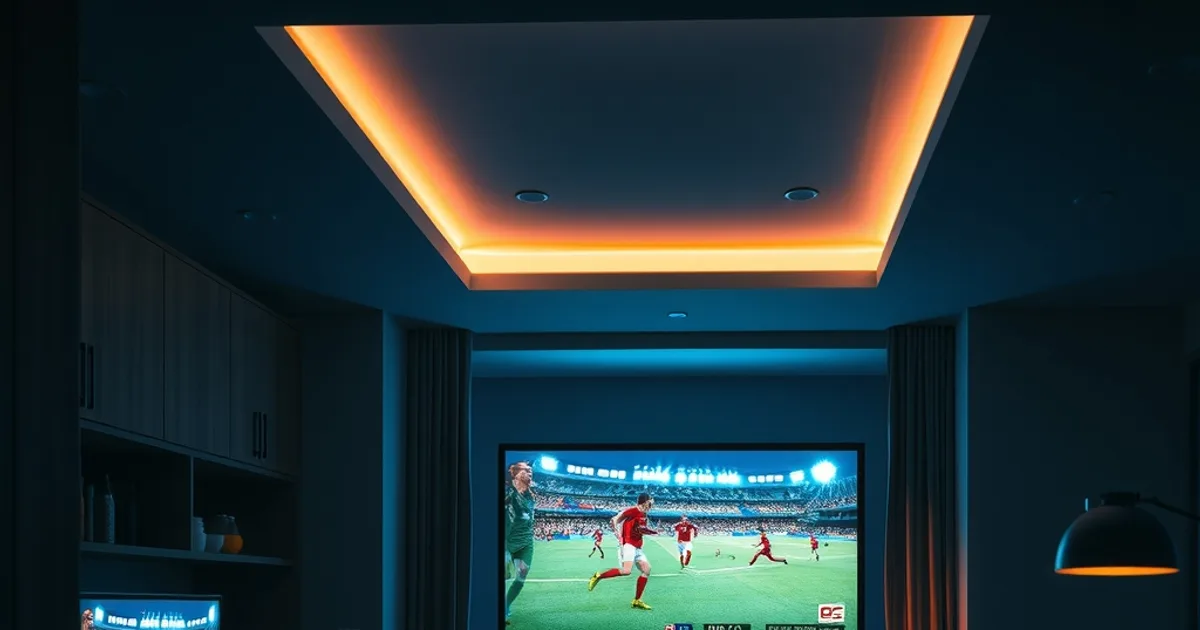
The Premier League's 2026-27 season kicks off on opening weekend, Friday August 21 through Sunday August 23, and it's the moment most households actually stress-test their IPTV setup for the first time. One person wants the match in the living room, someone else wants a different game or a kids' channel in another room, and a third screen is running in the kitchen while dinner gets made. That's the exact scenario where a subscription that worked fine solo suddenly throws an error nobody's seen before.
Most IPTV review sites cover this badly. They'll tell you which remote to buy for a Fire Stick, or whether TiviMate beats Smarters, or how many channels a provider lists — device-by-device, spec-by-spec. What they skip is the household-level question that actually decides whether your setup works on a Saturday afternoon: how many screens can run at once, what happens the moment you go over that number, and which plan actually matches how many people are in your home.
This guide treats simultaneous streaming as something you plan for, not something you discover by accident when a screen freezes mid-match. It covers how connection limits work, how to size a plan to your household, how to lay out devices room by room, and exactly what to do the moment you hit a wall.
What are IPTV connection limits and how do they work?
Every IPTV subscription — Marinios included — ties your login to a maximum number of simultaneous streams, not a maximum number of devices. That distinction matters more than most guides admit: you can install the app on five devices and never have a problem, because the limit only counts screens that are actively playing a stream at the same moment. A tablet sitting idle with the app open doesn't count. A tablet actually playing a channel does.
Under the hood, this is enforced server-side. When a device requests a stream, the server checks how many active sessions are already open on that account. If you're under the limit, the stream starts. If you're at the limit, the newest request typically gets rejected or the oldest active session gets kicked off, depending on how the provider's server handles it. Either way, it's not a bug — it's the plan doing exactly what it's built to do.
The confusing part for most households is that this ceiling is invisible until you hit it. Nothing in the app tells you "you have 2 of 3 slots used" while you're browsing channels. The first signal is usually a failed stream, a generic error, or a channel that loads on one screen but immediately kills the one that was already playing. Understanding that this is a connection count, not a device count, is the first step to planning around it instead of being surprised by it.
Not sure how many screens your household actually needs at once?
How many devices can stream Marinios at the same time?
The exact number of simultaneous streams depends on which Marinios plan you're on — that's the kind of specific detail that changes with pricing tiers, so check the current plan breakdown on the subscription guide rather than assuming a number. What's consistent across IPTV services generally is the shape of the tiers: an entry-level plan built for one viewer at a time, a mid-tier built for a couple of screens, and a household or family tier built for several rooms running independently.
The practical question isn't "what's the maximum the provider allows" — it's "what does my household actually do on a Saturday." Count the screens that could realistically be live at the same time during peak hours: living room TV during the big match, a second TV or tablet for someone watching something else, a phone for a partner catching a game on the train. That number, not the theoretical device count, is what your plan needs to cover.
It's also worth separating installed from active. You can have Marinios set up on every TV, tablet, and phone in the house — that costs nothing and creates no conflict. The limit only bites when two of those devices try to pull a stream in the same window. Planning around peak concurrent usage, not total device count, is the single most useful mental shift for avoiding connection-limit surprises.
Choosing the right Marinios plan: 1-person vs family households
A single-viewer household — one person, one main screen, maybe a phone for backup — rarely needs more than the base tier. The failure mode to watch for isn't underpaying, it's overpaying for connection slots that never actually get used simultaneously, so if you live alone or with one other person who watches on the same schedule as you, don't default to the biggest plan out of caution.
A couple or two-adult household is where the entry tier starts to strain. Different schedules, different interests, or simply one person wanting the match while the other wants something else in another room pushes you past a single-stream plan quickly. This is the point where checking the exact stream allowance on each tier, on the subscription guide, actually matters before you buy — not after the second screen goes dark mid-show.
A family household — kids' content in one room, sport in another, a parent catching up on a phone — needs the plan built for that, and needs it from day one rather than upgrading reactively after a frustrating weekend. The cost difference between tiers is generally smaller than the cost of a canceled subscription because the family decided IPTV "doesn't work" when the real issue was an undersized plan.
If your household size or viewing habits are genuinely unclear — a guest room that's occupied some weekends and not others, a college kid home some months and away others — it's worth asking directly rather than guessing. A quick conversation about actual concurrent usage, not theoretical device count, gets you to the right tier faster than trial and error.
Room-by-room setup: which device works best where
The living room TV is the anchor device and deserves the most capable setup: a Fire Stick, Android TV box, or the TV's native app running on a strong Wi-Fi connection or, better, a wired Ethernet link if the TV is near the router. This is the screen most likely to be running during peak hours — a big match, a family movie night — so it should be the one least likely to buffer. The firestick setup guide covers getting this device installed and configured correctly the first time.
Bedrooms are usually a lighter-touch setup — a smart TV's built-in app, a Fire Stick, or a Roku, depending on what's already in the room. Because bedroom viewing is often solo and lower-stakes than the living room's peak-hours match, this is a reasonable place to run a slightly less powerful device without noticing a difference. If Roku is what's already connected in that room, the Roku setup guide walks through the install specific to that hardware.
Kitchens and smaller secondary screens are where a tablet or phone casting to a smaller display, or a compact streaming stick, makes more sense than investing in a full box. These tend to be shorter, lower-bandwidth viewing sessions — checking a score, half-listening during dinner prep — so they're a good candidate for standard-definition or lower-bitrate playback rather than pushing for the same quality as the living room.
Mobile devices — phones and tablets used away from a fixed screen — round out the household. The right app matters here more than people expect: a phone screen doesn't need TiviMate's EPG-heavy interface, and a tablet used mainly for casting benefits from a different setup than one used for direct viewing. The app comparison guide breaks down which app fits which device rather than defaulting to the same app everywhere out of habit.
Optimizing WiFi and bandwidth for multi-device viewing
Multiple simultaneous streams share one home internet connection, and that connection has a real ceiling even if your plan's advertised speed sounds generous. The number that matters isn't your ISP's headline speed, it's the actual throughput available during peak evening hours, when everyone else on your street is streaming too — which is precisely when your household is also most likely to have several screens running.
Wired connections beat Wi-Fi for any screen that's fixed in place. If the living room TV is anywhere near the router, an Ethernet cable removes an entire category of buffering complaints for the device carrying the most demanding stream. For devices that have to be wireless, keeping them close to the router or a mesh access point, and off the same congested 2.4GHz band as every other smart-home gadget in the house, does more for stream stability than most people expect.
If buffering shows up specifically when multiple people are watching at once, or specifically during peak evening hours rather than randomly, that's a signal worth chasing down properly rather than just restarting the router. The buffering and throttling guide covers how to tell the difference between a home network problem and an ISP throttling your connection during busy hours — the fix is completely different depending on which one it is.
When you hit the connection limit: solutions, guests, and workarounds
The first move when a stream fails to start or an active stream suddenly cuts out is to check what else is running. Walk the house: is a TV left on standby with the app still open and mid-stream, is a tablet somewhere still playing in the background, is a phone still casting from an earlier session that never actually closed. A huge share of "connection limit" problems are really just a forgotten idle-but-active stream nobody remembered to close.
Closing the app fully — not just backgrounding it, and not just turning the TV screen off — is the reliable fix for a phantom active session. On most devices, backgrounding an app pauses the picture but doesn't necessarily release the stream slot immediately. If you suspect a stuck session, log out and back in on the device that's misbehaving; that forces the old session to close server-side.
A visiting friend or family member watching on their own device is the most common cause of an unexpected limit hit, because it's viewing that wasn't part of your normal household pattern when you picked a plan — it's not misuse, just an extra concurrent stream your usual math didn't account for. If guests are a regular matchday occurrence, size your plan with that stream in mind; if it's occasional, it's usually enough to close an idle stream elsewhere in the house to make room rather than assume something's broken.
If the limit is genuinely being hit by real, simultaneous, intentional viewing — three people actually watching three different things at once on a plan built for two — that's not a bug to work around, it's a sizing problem, and the same logic applies if you're regularly sharing your login outside the household. At that point, the fix is upgrading to the tier that actually covers your real usage, which the subscription guide lays out, rather than juggling who gets to watch and who has to wait every single evening.
Bandwidth requirements when multiple devices stream live sports
Live sports are the worst-case scenario for a shared connection, and it's not really about the sport — it's about timing. A movie night has one screen running during a predictable window; a Premier League Saturday has three or four kickoff slots where the whole household independently decides it's time to watch something, all inside the same 15-minute window. That's when a connection that handles two casual streams fine suddenly struggles with three sports streams at once.
Each additional simultaneous stream adds directly to your total bandwidth draw, and live sport in particular tends to run at a higher, steadier bitrate than on-demand content because there's no local buffering ahead of the live edge — the picture is only ever as good as what's arriving right now. If one of those streams is in 4K, the math changes more than most people expect; the 4K setup guide walks through exactly how much headroom a single 4K stream needs, before you even add a second or third device on top of it.
The practical takeaway for matchday: if you know in advance that opening weekend, or any big fixture, is going to have every screen in the house running football at once, it's worth doing a quick gut-check on your internet plan's actual speed beforehand rather than finding out live, mid-match, that the connection can't keep up with everyone's kickoff at the same time.
Get the plan sized for how your whole household actually watches.
Troubleshooting simultaneous streaming issues
Start by isolating whether the problem is the connection limit, the network, or the device. If a stream won't start at all and gives an error immediately, that's usually the connection limit — check for idle-but-active sessions elsewhere in the house first. If a stream starts but buffers or drops in quality specifically when other screens are also active, that's a bandwidth problem, not a limit problem, and points back to your home network setup.
If only one specific device struggles while others run fine under the same conditions, the issue is local to that device — an outdated app version, a weak Wi-Fi signal in that room, or hardware that's simply underpowered for the stream quality it's being asked to decode. Swapping that one device, or moving it closer to the router, usually resolves it without touching anything else in the household setup.
Keep a rough mental log the first few times something goes wrong: which devices were active, what time of day, whether it was a big-match Saturday or an ordinary weeknight. Multi-device problems that only show up during predictable peak windows are almost always a sizing or bandwidth issue with a clear fix; problems that show up randomly, with no pattern, are more often a single misbehaving device or a stale session that a fresh login clears up.
Frequently asked questions
Does installing Marinios on more devices use up my connection limit?
No. Installing the app costs nothing — the limit only counts devices actively streaming a channel at the same moment. You can set up Marinios on every screen in the house and only the ones actually playing at once count toward your plan's limit.
Why did my stream stop working when someone else in the house started watching?
This is almost always a connection-limit issue: your plan supports a set number of simultaneous streams, and the new stream pushed the household past it. Check for a forgotten idle-but-active session elsewhere in the house, or consider whether your plan actually matches how many people watch at once.
How do I know which Marinios plan fits my household?
Count how many screens could realistically be playing something at the same time during your busiest viewing window, usually a weekend evening or a big match. That peak concurrent number, not your total device count, is what determines the right tier — the subscription guide breaks down what each plan supports.
Can I watch on my phone while the TV is also streaming?
Yes, as long as your plan's simultaneous-stream allowance covers both. A phone playing a stream counts the same as a TV or tablet — it's about how many screens are active at once, not what type of device they are.
Will a guest watching on their own device during a visit cause problems?
It can, if it pushes your household past its normal concurrent-stream count. It's not a misuse issue — it's just an extra stream your regular plan sizing may not have accounted for. If guests are a regular occurrence, it's worth factoring that into which plan you choose.
Does watching in 4K on multiple devices at once need a much faster connection?
Yes — a 4K stream needs meaningfully more bandwidth than standard or HD, and that requirement stacks with every additional device streaming at the same time. The 4K setup guide has the specific bandwidth math for running 4K alongside other simultaneous streams.
Read next: the pricing page or the FAQ.