
Watch Multiple Premier League Matches at Once: Marinios Multi-View Setup 2026
August 14, 2026 · 9 min read
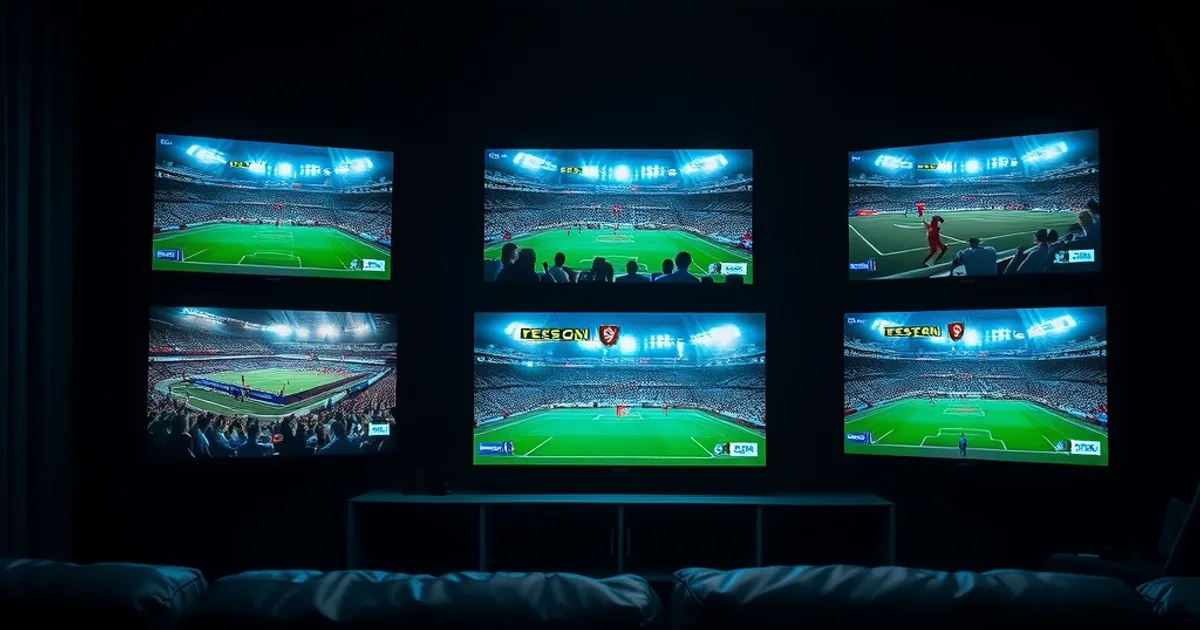
The Premier League's 2026-27 season kicks off Friday, August 21, with defending champion Arsenal hosting Coventry — and by Saturday afternoon the real problem starts: three, four, sometimes five matches all kicking off within the same fifteen-minute window. If you only have one screen and one stream open, you're picking a winner and missing the rest.
Multi-view isn't a new idea — major sports broadcasters and streaming services have both pushed hard on it in 2026, packaging four-game grids as a headline feature. What almost nobody has written is how to do the same thing on Marinios, with the apps Marinios subscribers actually use and the connection limits Marinios plans actually have. Most "watch multiple matches" guides are generic World Cup content recycled for any big tournament; none of them touch Marinios specifically.
This guide fixes that gap. It walks through checking whether your plan supports the simultaneous streams multi-view needs, comparing how TiviMate and IPTV Smarters handle split-screen sports, and setting it up device by device — Fire Stick, Android TV, and Samsung/LG Smart TVs — in time for opening weekend.
Why Multi-View Matters: Premier League Weekend Matchdays Have 3-5 Simultaneous Kickoffs
A typical Premier League Saturday runs three kickoff slots, but within the 15:00 slot alone it's common to have four or five matches going at once. If your rivals are playing the same afternoon as your own team, or you're tracking a relegation or title race across multiple results, a single stream forces you to guess which game matters most and hope the app's mini-scoreboard keeps you honest on the rest.
That's the appeal of multi-view: instead of channel-surfing between full-screen streams and losing the thread of two other matches, you keep two, three, or four fixtures visible at once, glance-checking whichever one has the ball in a dangerous area. It's the same logic that broadcasters and streaming services leaned into this year with multi-view features — sports viewing habits have shifted from "pick one game" to "track several," and IPTV apps have quietly caught up.
The difference with Marinios is that multi-view isn't a built-in platform feature you toggle in a settings menu — it's something you build yourself, using an app that supports split-screen playback and channels pulled from your Marinios sports lineup (covered in detail at /blog/marinios-iptv-sports-channels). Once you know how, it takes a few minutes to set up before kickoff and stays saved for every matchday after.
Not sure how many streams your Marinios plan allows for multi-view?
Does Your Marinios Plan Support Multi-View? (Checking Simultaneous Connection Limits)
Multi-view doesn't magically create extra streams — it displays multiple streams your account is already allowed to open at the same time. Every Marinios plan has a simultaneous-connection limit, and that number is what actually caps how many matches you can tile on screen. Two games side by side needs two active connections; a four-game grid needs four.
Before you build anything, confirm your plan's connection allowance from your account details or by asking support directly — don't assume. If your current plan only covers a single stream, multi-view simply won't work no matter how the app is configured, because the second and third streams will get rejected or kick the first one offline.
If you're planning to run a 4-game Saturday grid regularly, it's worth comparing plans on /plans before the season gets going rather than discovering the limit mid-match on opening weekend. It's a five-minute check that saves you troubleshooting a "why did my other screens freeze" problem later.
Which Apps Support Multi-View with Marinios: TiviMate vs IPTV Smarters Comparison
Not every IPTV app handles multiple simultaneous streams the same way. TiviMate's paid tier includes a genuine multi-screen mode built for exactly this — you pin several channels into a grid layout and each tile plays live, independent of the others, with audio focus on whichever tile you select. It's the more polished option for a true side-by-side sports wall.
IPTV Smarters Pro takes a lighter approach: it supports picture-in-picture, where one match plays full-screen and a second plays in a small floating window you can reposition. It's not a true multi-stream grid, but it's simpler to set up and works well if you mainly want to keep an eye on one second game while focused on your main match.
For a full breakdown of how each app installs and performs on Marinios beyond just multi-view, see /blog/marinios-best-iptv-app-tivimate-smarters. The short version for this use case: pick TiviMate if you want three or four games genuinely tiled together, pick IPTV Smarters if picture-in-picture on one secondary game is enough.
Multi-View Step-by-Step Setup on Fire Stick
Start from a working Marinios app install on your Fire Stick — if you haven't done that part yet, follow /blog/marinios-iptv-firestick-setup first, since multi-view builds on top of a normal working playlist, not a separate app.
In TiviMate, open the channel you want as your first tile, then use the app's multi-screen or "add channel" option from the player controls to bring in a second Marinios sports channel alongside it. Repeat for a third or fourth tile up to your connection limit. Save the layout as a favorite grid so you're not rebuilding it every Saturday — most Fire Stick users set up one "matchday" grid once and just reopen it each weekend.
Fire Stick hardware matters here more than on other devices: a 4-game tiled grid is decoding four video streams at once, so an older Fire TV Stick (Lite or 3rd-gen) can struggle. If tiles stutter or drop frames, cut back to two streams or check your device against the guidance in /blog/marinios-4k-iptv-setup-2026, which covers the hardware and bandwidth side of smoother playback.
Multi-View on Android TV & Samsung/LG Smart TVs
Android TV boxes (Nvidia Shield, Chromecast with Google TV, and most branded Android TV sets) handle multi-view the same way as Fire Stick through TiviMate, and generally with more processing headroom — a Shield in particular chews through a 4-tile grid without the frame drops smaller sticks show.
Samsung and LG Smart TVs are the trickier case, because Tizen and webOS don't run TiviMate or IPTV Smarters natively at full feature parity — you're usually sideloading an app or using a Marinios-compatible player with reduced functionality. On these TVs, true multi-screen tiling is often unreliable or unsupported, so picture-in-picture through IPTV Smarters (or your TV's own built-in PiP, if the manufacturer supports it alongside an HDMI or casting source) is the more realistic option.
If your main viewing device is a Samsung or LG TV and multi-view is a priority, the more dependable route is casting from an Android phone or tablet running TiviMate's multi-screen mode to the TV, rather than trying to force tiling inside the TV's own app store version.
Picture-in-Picture vs True Multi-Stream: When to Use Each
True multi-stream (TiviMate's grid) is best when several matches genuinely matter to you at once — a relegation-six-pointer Saturday, or tracking your team plus two rivals simultaneously. Each tile is a full independent stream, so you can tap any one to bring it to full screen with sound the moment something happens.
Picture-in-picture is the lighter-weight choice: one primary match with full attention and audio, and a secondary game reduced to a small corner window purely for score-tracking. It uses the same number of connections as multi-stream (each PiP window is still a live stream) but is easier on lower-powered devices since only one stream needs full-resolution decoding at a time.
A practical rule: if you're actively watching two or more games, use true multi-stream. If you're watching one game and casually checking a second, PiP is the less demanding, less fiddly setup — and it's the one that plays nicest with older Fire Sticks or Smart TV apps that can't handle a full tiled grid.
Troubleshooting Multi-View: Black Screens, Account Blocks & Connection Drops
The most common multi-view failure is simple: you've opened more streams than your plan allows, and the newest connection either shows a black screen or silently kicks off the oldest one. If a tile won't load or another tile freezes the moment you add a new one, that's almost always a connection-limit ceiling, not a bug — go back to the plan check earlier in this guide.
The second most common issue is bandwidth, not account limits. Four simultaneous HD or 4K streams multiply your data usage fourfold, and on a home connection already stressed during peak Saturday hours, that's often enough to trigger buffering across every tile at once. If matches buffer specifically on weekend afternoons, that's a known pattern covered in /blog/iptv-buffering-peak-hours-isp-throttling-fix — dropping one or two tiles to lower quality, or wiring your streaming device via Ethernet instead of Wi-Fi, usually resolves it.
If a specific channel goes black across all tiles rather than just one, that's a source-side issue with that particular feed, not your multi-view setup — try swapping in an alternate channel for that match rather than troubleshooting the whole grid.
Ready to run a full multi-match Premier League grid every Saturday?
Maximize Your Marinios Subscription: Simultaneous Streams Strategy
The households getting the most out of multi-view aren't necessarily the ones with the highest connection count — they're the ones who matched their grid size to what they'll realistically watch. A 2-stream setup you actually use every Saturday beats a 4-stream grid that overloads your Wi-Fi and gets abandoned by half-time.
If you're a genuine multi-match household — say, following your own team plus a rival plus a relegation battle every weekend — this is exactly the scenario where checking your connection allowance against a higher-tier plan on /plans pays off before the season, not after you've already hit the ceiling on opening weekend.
Set your grid up once this week, save it as a favorite layout in TiviMate or your PiP shortcut in IPTV Smarters, and it's ready to go the moment Arsenal vs Coventry kicks off the season on August 21 — no rebuilding required every Saturday morning.
Frequently asked questions
How many Premier League matches can I watch at once on Marinios?
That depends entirely on your plan's simultaneous connection limit — each tile or PiP window uses one connection. Check your plan details or ask support for your exact allowance before building a grid larger than two streams.
Do I need a paid version of TiviMate for multi-view?
The multi-screen grid feature is part of TiviMate's premium tier. The free version works fine for single-stream viewing, but true tiled multi-view requires the paid upgrade.
Can I use multi-view on a Samsung or LG Smart TV?
True tiled multi-stream is unreliable on Tizen/webOS apps. Picture-in-picture is more realistic on these TVs, or you can cast from an Android phone or tablet running TiviMate's multi-screen mode for a fuller grid.
Why does my second or third stream show a black screen?
This almost always means you've exceeded your plan's simultaneous connection limit. Close a stream to free up a connection, or upgrade your plan if you consistently need more concurrent streams.
Will running multiple streams at once cause more buffering?
Yes — each additional stream multiplies your bandwidth use. If tiles buffer specifically during weekend peak hours, it's usually a home connection or ISP throttling issue rather than a Marinios problem; try Ethernet over Wi-Fi or dropping one stream's quality first.
Is picture-in-picture the same as multi-view?
Not quite. Picture-in-picture keeps one match full-screen with a smaller secondary stream layered on top, while true multi-view (TiviMate's grid) tiles two or more independent streams side by side with equal prominence.
Read next: the pricing page or the FAQ.